日本語版
User Manual of TrackThink
Overview
TrackThink was build with privacy as the first issue to keep in mind. Therefore, along with the logging functionalities, the user can edit the logs and remove the ones that he/she wants to hide.
The extension can be disabled from the extension page of the browser (Chrome, Bave, and Vivaldi). However, if by accident the user visited website that are not related to solving programming problems, he/she can remove these logs. Later, the user can download the logs in a csv file and can even proceed to more editing for a total protection of the user’s privacy.
If you want to know more about our privacy policy and handling of data please look at the privacy policy page.
Workflow
The purpose of the experiment is to track how the user searches for solutions of programming problems. Therefore, the experiment workflow is as follow:
- Install and activate the extension
- Input your name (More details later)
- Proceed to use the browser normally
- By the end of the experiment, the user can check the logs
- Select the unwanted logs to remove them
- Export the logs
- Submit the logs to the professor / research assistant
Accessing the extension
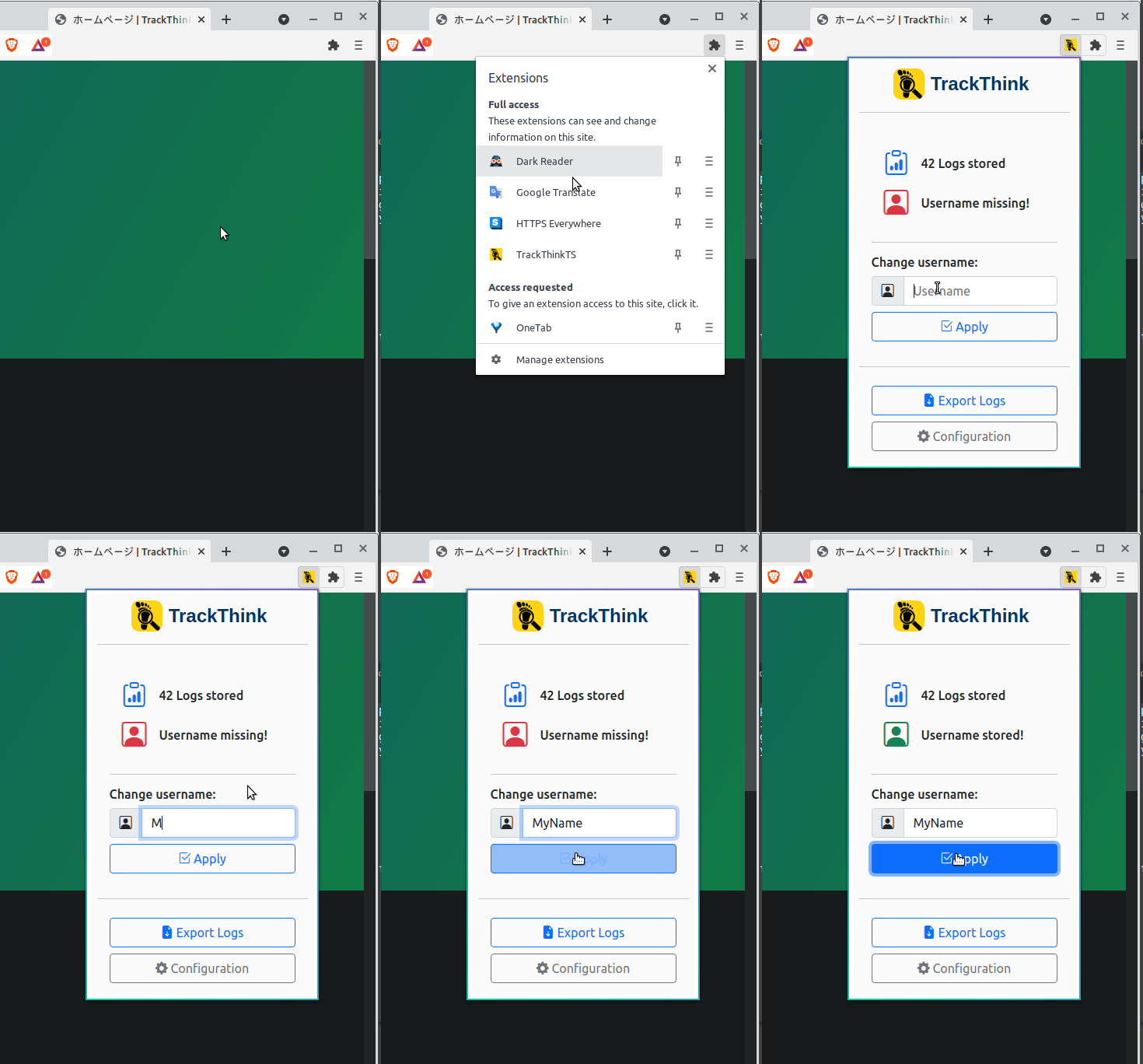
Depending on your version of the browser, you should have a button for all extension on the top right corner. From there, you can select the TrackThink extension to access its status.
Setting up the username
From the extension popup, the user can set up the username as shown below:
Accessing the configuration page
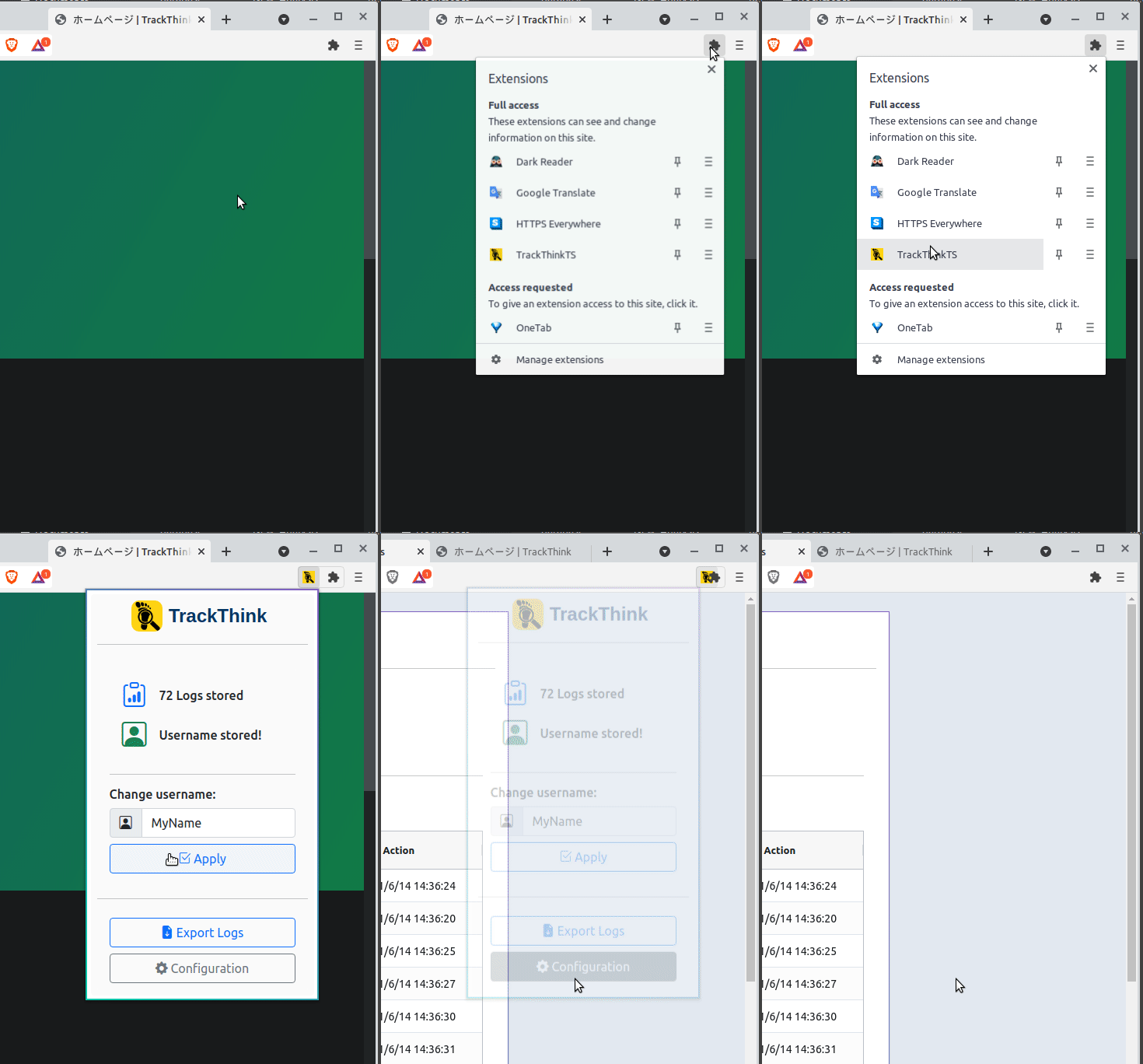
From the configuration page you can check the logs, remove some of them, change the username or access advanced options (restricted only for research assistants). To access the configuration page follow the instructions below:
Deleting undesired logs
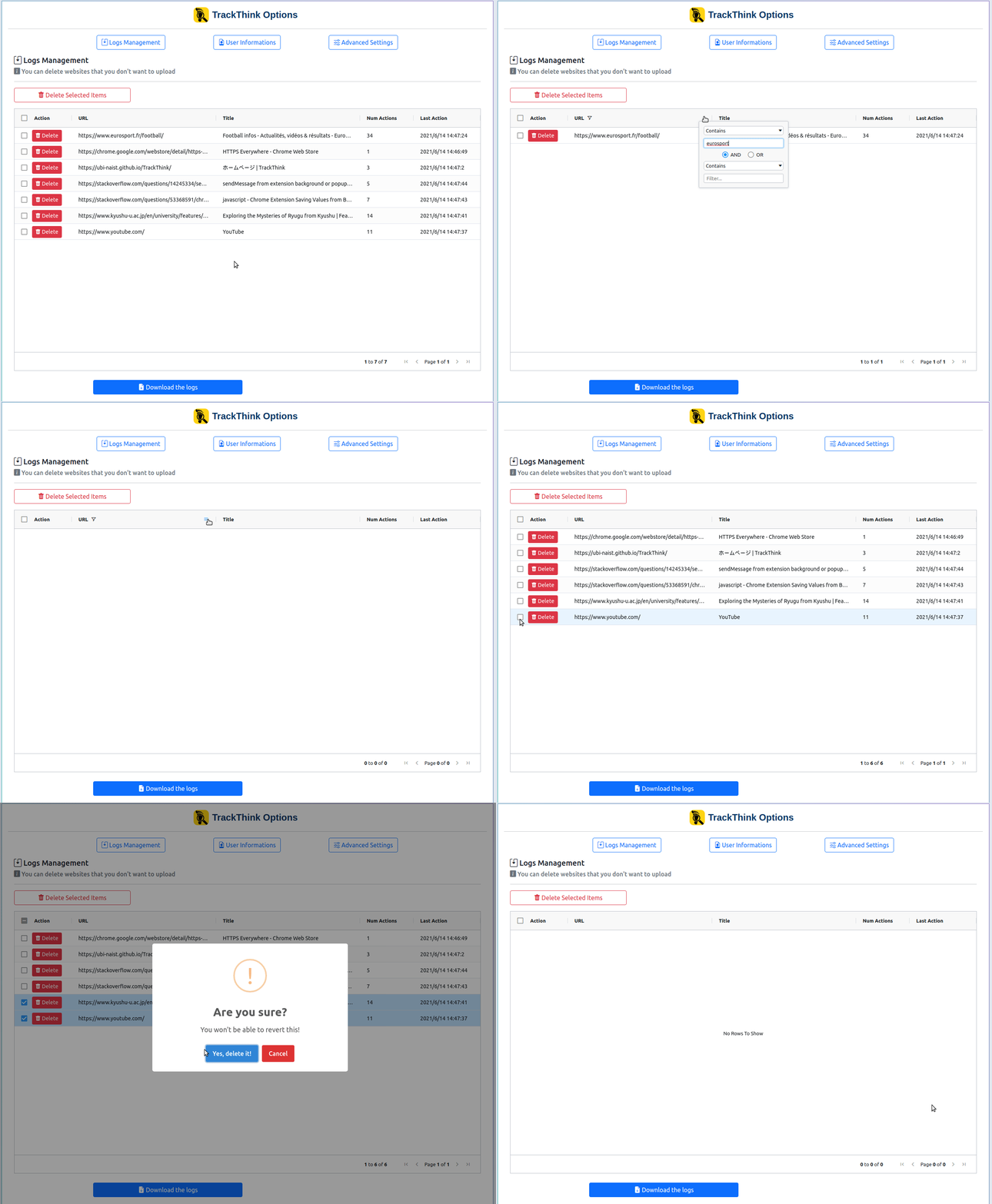
In the configuration page, the user can check all the logged URLs and manage them. The logs are shown in a datatable that offers the possibility to filter and order the logs. Single item and multiple items deletes are available.
To search then remove undesired logs you can follow the instructions below:
Download the logs
Downloading the logs is possible from the extension popup or from the configuration page. Please note that the username must be defined before downloading the logs. As an example, the following instructions show how to download the logs from the popup:
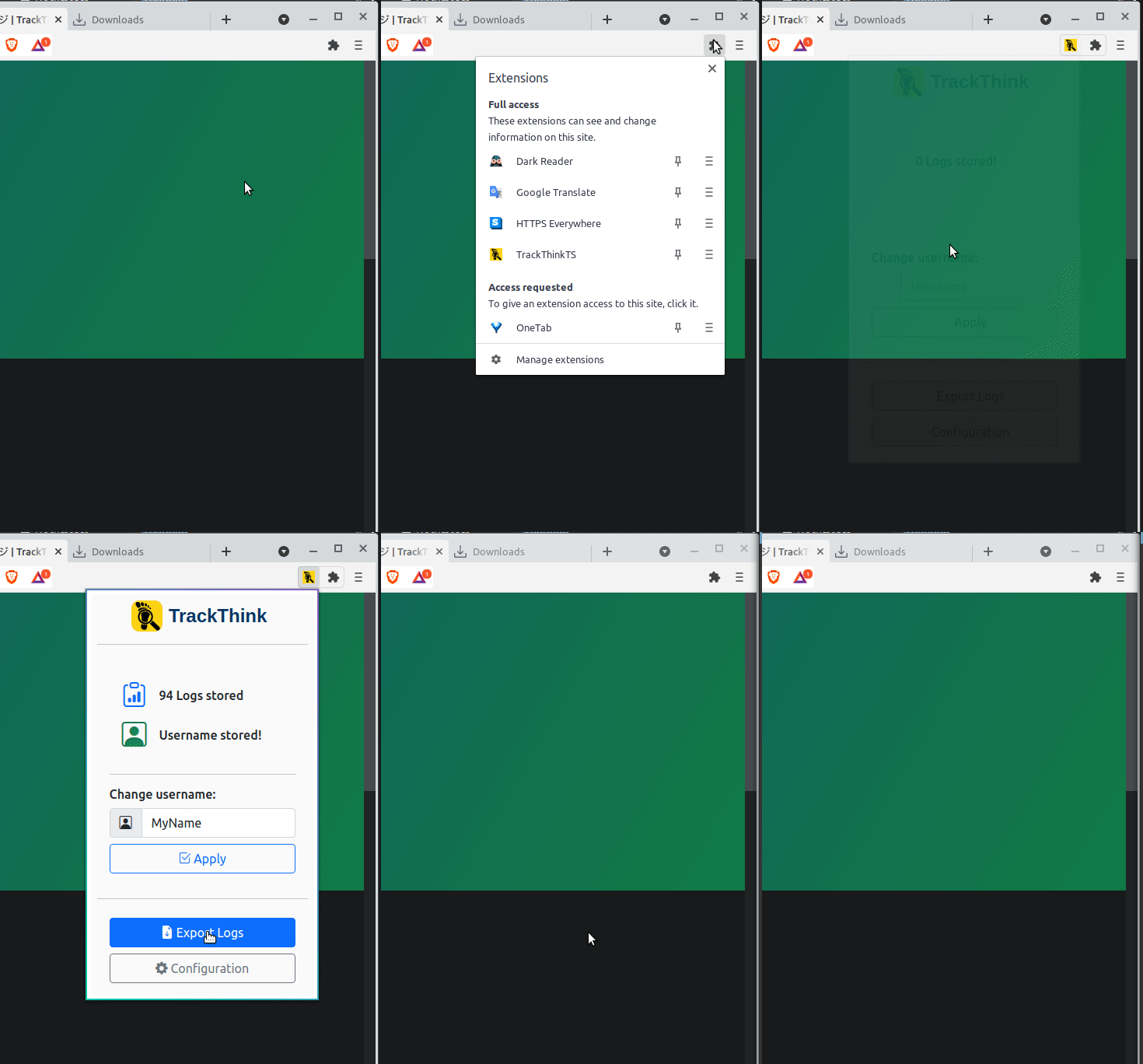
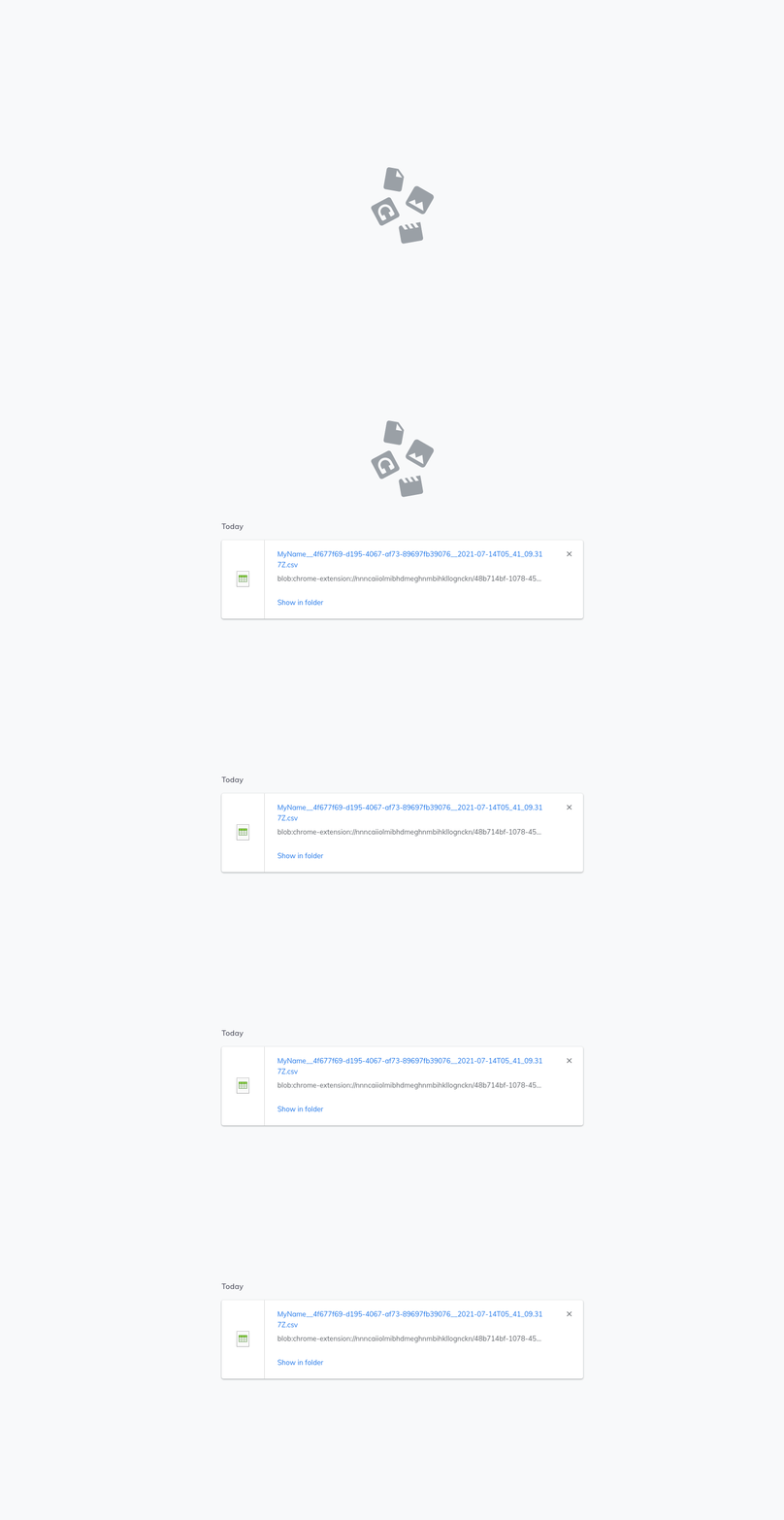
Then the file should appear in the downloaded list.
Contact
If you have any question about the extension or the handling of personal information, please contact us at the email address below. Email address:ubi.es.naist@gmail.com
Last updated
2021/07/21